Mirror Filtered Data to CPU
Mirroring to CPU with filter feature provides the ability to mirror filtered data plane packets to CPU. It enables sniffing of selected packets that match the programmed filter condition and real-time monitoring in the Network Operating System.
The mirrored packets can be used in Linux shell by running a command line (tcpdump) to capture runtime traffic and inspect them for troubleshooting, monitoring, and analyzing network behavior at the interface level in real-time or can be subsequently saved as PCAP files for further analysis and offline detailed examination.
Feature Characteristics
The main characteristics of Mirroring to CPU are as follows:
• Enables monitoring in the switching devices, such as leaf and spine switches.
• Monitoring at the leaf provides visibility into north-south traffic (between endpoints and external networks or services).
• Monitoring at the spine provides visibility into east-west traffic, i.e., between leaf switches.
• Supports one or more source interfaces and one or more VLAN sources in the ingress direction.
• Works similar to monitor session and supports stop or delete function.
• Overcomes the issue of latency or delay incurred on the path of mirrored traffic to reach its monitoring device while using SPAN, RSPAN, or ERSPAN.
Note: The BFD packets, original and mirrored, redirect to hw-bfd cpu-queue and are not captured in tcpdump on TH3 and TH2 devices.
Benefits
This feature helps to overcome the situations mentioned below:
• Latency or delay incurred on the path of mirrored traffic to reach its monitoring device.
• Reserving switch ports bandwidth for the additional traffic.
• If the port that forwards mirrored traffic is congested, the mirrored copy will not reach, impairing the monitoring ability to debug the issue.
Supported Hardware
The following XGS platforms are supported:
• Maverick2 (AS5835-54X)
• TR3-X7 (AS7326-56X, AS7726-32X, S9110-32X)
• TR3-X5 (S8901-54XC)
• TH2 (AS7816-64X)
• TH3 (AS9716-32D)
Configuration
Topology
A network traffic simulator device connects to routers R1 and R2 to generate and send various types of network traffic.The traffic passing through these routers are monitored real-time in the router itself.
Using the mirroring to CPU capability, sniffing is done on selective packets that match the programmed filter condition, and a copy of the packet is lifted to the CPU of the device.
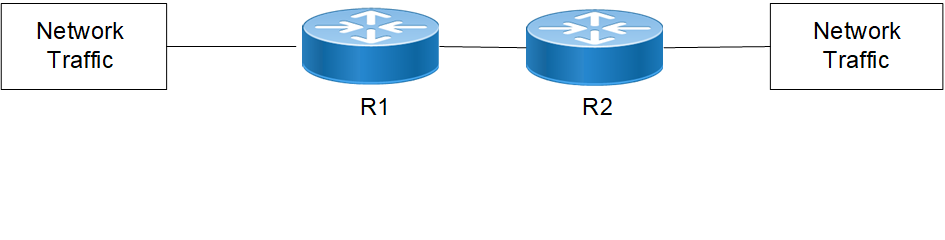
Here are the configuration steps:
1. Enter configure mode and create a session for Mirror to CPU
R1(config)#monitor session 1 type sniff
2. Optionally, add sources such as source VLAN and/or source interface to the sessions. For example, the command source interface configures the monitored source interface and the direction of the traffic to be monitored. If not specified, both ingress and egress traffic are monitored.
R1(config-monitor)#source interface xe57 rx
3. Configure the CPU interface sniff0 or sniff 1 as destination interface for ingress, egress, or both the directions.
R1config-monitor)#destination interface sniff0
or
R1config-monitor)#destination interface sniff1
You can choose any one of the two CPU interfaces, sniff0 or sniff1, for different monitor sessions. Also, the same sniff interface can be chosen for multiple sessions.
4. Configure filter rules for IPv4/IPv6 packets using the filter attributes as follows
1. Configure DSCP for IPv4/IPv6 frame type in the range 0 to 63
R1(config-monitor)#filter frame-type ipv4 (dscp <0-63>
or
R1(config-monitor)#filter frame-type ipv6 (dscp <0-63>
2. Configure hop limit for IPv6 frame type in the range 1 to 255
R1(config-monitor)#filter frame-type ipv6 (hop-limit <1-255>
3. Configure TTL for IPv4 frame type in the range 1 to 255.
R1(config-monitor)#filter frame-type ipv4 (ttl <1-255>
4. Configure ICMP, TCP, and UDP protocols for IPv4/IPv6 frame type in the range 0 to 255
R1(config-monitor)#filter frame-type ipv4 (protocol (icmp | tcp | udp | <0-255>)
or
R1(config-monitor)#filter frame-type ipv6 (next-header (icmpv6 | tcp | udp | <0-255>)
Note: TTL and TCP flags are not supported on TR3 platforms.
5. Configure ICMP type for IPv4/IPv6 frame types in the range 0 to 255
R1(config-monitor)#filter frame-type ipv4 protocol icmp icmp-type <0-255>
or
R1(config-monitor)#filter frame-type ipv6 next-header icmp icmp-type <0-255>
6. Configure ICMP code in the range <0-255>
R1(config-monitor)#filter frame-type ipv4 protocol icmp icmp-type <0-255> icmp-code <0-255>
or
R1(config-monitor)#filter frame-type ipv6 next-header icmpv6 icmp-type <0-255> icmp-code <0-255>
7. Configure source port with TCP and UDP protocols
R1(config-monitor)#filter frame-type filter frame-type ipv4 protocol udp sport <0-65535>
R1(config-monitor)#filter frame-type ipv4 protocol tcp sport <0-65535>
or
R1(config-monitor)#filter frame-type filter frame-type ipv6 next-header udp sport <0-65535>
R1(config-monitor)#filter frame-type ipv6 next-header tcp sport <0-65535>
8. Configure destination port with TCP and UDP protocols
R1(config-monitor)#filter frame-type ipv4 protocol udp dport <0-65535>
R1(config-monitor)#filter frame-type ipv4 protocol tcp dport <0-65535>
or
R1(config-monitor)#filter frame-type ipv6 next-header udp dport <0-65535>
R1(config-monitor)#filter frame-type ipv6 next-header tcp dport <0-65535>
9. Configure TCP flags with TCP protocol
R1(config-monitor)#filter frame-type ipv4 protocol tcp tcp-flags {established | urg | ack | psh | rst | syn | fin}
or
R1(config-monitor)#filter frame-type ipv6 next-header tcp tcp-flags {established | urg | ack | psh | rst | syn | fin}
CLI Commands
The Mirror to CPU feature introduces the following configuration commands.
monitor destination sniff truncate
Use this command to enable truncation of the packets sniffed to CPU.
Use no form of this command to disable truncation of the packets sniffed to CPU.
Note: Truncation of packets is not supported on TH2 platforms.
Command Syntax
monitor destination sniff truncate
(no) monitor destination sniff truncate
Parameters
None
Default
No default value is specified
Command Mode
Configure mode
Applicability
This command was introduced in OcNOS version 7.0.0.
The below commands have been revised for this feature. For more details, refer to the Traffic Mirroring Commands chapter.
• Command syntax in monitor session
• Command syntax in filter